
Why Is My Website So Slow? (And How to Fix It Without a Developer)

The most common reasons a WordPress website is slow are unoptimised images, too many or poorly coded plugins, poor hosting, missing caching, and bloated code. Most of these can be improved without a developer using free tools. A slow website doesn’t just frustrate visitors — it actively lowers your Google rankings and reduces the number of enquiries your site generates.
A slow website is almost always caused by one of five things: images that haven’t been optimised, too many poorly coded plugins, cheap hosting that can’t serve your pages quickly, missing caching, or code that’s doing more work than it needs to. The good news is that most of these can be significantly improved without touching a line of code — and fixing them will not only make your site faster for visitors, it will also improve your Google rankings.
Why a Slow Website Is a Business Problem, Not Just a Technical One
Before getting into causes and fixes, it’s worth understanding what a slow website is actually costing you because it’s more than an inconvenience.
53% of mobile visitors will leave a website that takes more than three seconds to load, according to Google’s own research. On a four or five second load time, the majority of your potential customers are leaving before they’ve seen a single word of your content.
Speed is also a direct Google ranking signal. Google’s Core Web Vitals a set of measurements that assess real-world user experience are factored into search rankings. A slow site ranks lower than a faster competitor, even if the content is better.
And a Portent study found that a single one-second delay in page load time reduces conversion rates by approximately 7%. For a small business website that’s generating ten serious enquiries a month, that could mean losing one customer before you’ve had the chance to talk to them.
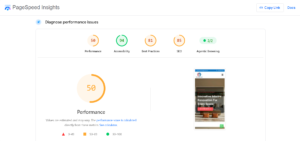
If you’ve noticed your site feeling sluggish, run a quick test at pagespeed.web.dev (Google’s free PageSpeed Insights tool) before anything else. Enter your website URL, choose mobile (which is how most people visit your site), and see your score. Anything below 50 on mobile is a problem worth addressing urgently. Below 70 is worth improving. Above 90 is excellent.
Cause 1: Your Images Are Too Large
This is the most common cause of a slow website for small businesses, and the easiest to fix.
When you take a photo on a modern phone or download an image from a stock site, you typically get a file that’s 2–5 megabytes or larger. For printing, that’s fine. For a website, loading a single image of that size is unnecessarily heavy and if you have ten of them on one page, you’ve made your page load ten times slower just from images.
Web images should typically be no larger than 100–200 kilobytes for standard photos, and ideally served in WebP format (a modern image format that’s significantly smaller than JPG or PNG with no visible quality loss).
What you can do yourself: Install the free Smush plugin on your WordPress site. It compresses and resizes your uploaded images automatically, and can bulk-optimise your existing image library. Run it on your site before anything else the speed improvement from image optimisation alone is often dramatic.
You can also check your largest images using your browser’s developer tools (right-click on your page, choose “Inspect”, then the “Network” tab, then reload the page and filter by “Img” to see every image and its file size).
Cause 2: You Have Too Many Plugins (Or Poorly Built Ones)
Plugins are how WordPress gets its functionality and they’re one of its greatest strengths. But every active plugin adds code that needs to load on your pages. Too many plugins, or plugins that are badly coded, can add seconds to your load time.
There is no magic number for how many plugins is “too many.” A site with 30 well-built plugins can load faster than one with 10 poorly coded ones. What matters is whether the code they load is lean and necessary.
Look at your active plugins and ask honestly: am I actually using this? Is there a lighter alternative? Did I install this for a specific purpose that no longer applies?
Deactivate and delete plugins you’re not using. Deactivating isn’t enough deleted plugins can’t be a security risk or resource drain. If you’re not sure what a plugin does, look it up before deleting it.
For finding which plugins are causing slowdowns, the Query Monitor plugin (free) shows you exactly how much time each plugin is consuming on each page load. It’s a useful diagnostic tool even if you can’t do the fixing yourself.
Cause 3: You’re on Cheap Hosting
Hosting is the foundation your website sits on. If the server your site runs on is slow, underpowered, or overloaded with other sites sharing the same resources, no amount of optimisation elsewhere will fully compensate.
Shared hosting where your site shares server resources with potentially hundreds or thousands of other sites is often the culprit behind persistently slow sites that don’t improve with other fixes. The cheapest hosting plans from large providers are designed for volume, not performance.
The tell-tale sign: your PageSpeed Insights score shows a high “Time to First Byte” (TTFB). This is the time from your browser requesting a page to receiving the first byte of response from the server. A TTFB above 600 milliseconds is often a hosting problem, not a code problem.
If you’re on a very cheap hosting plan, upgrading to a managed WordPress host or at minimum a VPS (Virtual Private Server) rather than shared hosting is often the single biggest performance improvement you can make. UK-based hosts like Kinsta, WP Engine, or even a higher tier from your current provider can make a measurable difference.
This is the one fix on this list that does cost money but the improvement in speed, reliability, and security is usually worth it for any business that relies on its website for enquiries.
Cause 4: You Don’t Have Caching Set Up
Caching is the process of saving a ready-made version of your web pages so they don’t have to be rebuilt from scratch every time someone visits. Without caching, WordPress builds your page dynamically each time it’s requested querying your database, running your plugins, and assembling the HTML on the fly. With caching, a saved version is served instantly.
For most WordPress sites, installing a caching plugin is the fastest, most impactful free performance fix available.
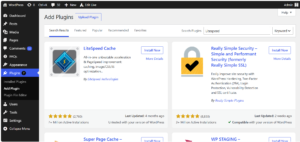
If your hosting uses LiteSpeed servers (many UK WordPress hosts do), the LiteSpeed Cache plugin is free and extremely effective. If you’re on a different server type, W3 Total Cache or WP Super Cache are well-established alternatives.
Once installed, most caching plugins work well with default settings you don’t need to configure every option. Enable page caching, enable browser caching, and minify CSS and JavaScript files. Those three settings alone should make a noticeable difference to your PageSpeed score.
One important note: some hosting environments conflict with certain caching plugins. If you install a caching plugin and your site breaks or displays strangely, deactivate it immediately and seek advice. Getting this wrong can cause more problems than it solves.
Cause 5: Your Code Is Bloated or Outdated
Every theme and page builder comes with its own code CSS stylesheets, JavaScript files, fonts, and other assets that load alongside your content. If your theme was built without performance in mind, or if you’re running an older page builder that hasn’t been updated in years, this code can add significant weight to your pages.
Signs that bloated code might be your issue:
- Your page source contains references to dozens of CSS or JavaScript files
- Your page builder loads a large number of assets even on simple pages
- You’ve switched themes or builders in the past and there may be leftover code from the old one
Fixing bloated code is generally a developer task it requires understanding what each piece of code does before removing it. However, there are some safer options available without developer knowledge:
Minification and file combination, which most caching plugins handle automatically, reduces the size of CSS and JavaScript files and the number of server requests needed to load a page. This alone won’t solve a deeply bloated codebase but it helps at the margins.
The more thorough fix cleaning up redundant code or replacing a slow page builder is typically worth exploring when you bring in professional maintenance support.
Your Quick Website Speed Checklist
Run through this in order before anything else. Tick off each one and re-test your PageSpeed score after each step to see what made the biggest difference:
✓ Test your current speed at pagespeed.web.dev (choose mobile)
✓ Install Smush and compress all existing images
✓ Ensure all new images are under 200KB before uploading
✓ Audit your active plugins deactivate and delete any you’re not using
✓ Install LiteSpeed Cache (if your host uses LiteSpeed) or WP Super Cache
✓ Enable page caching, browser caching, and CSS/JS minification
✓ Check your TTFB if it’s above 600ms, investigate your hosting tier
✓ Keep WordPress core, themes, and plugins updated (with tested backups)
If you run through all of the above and your site is still scoring below 50 on mobile PageSpeed Insights, the issue is likely either your hosting, your theme, or your page builder and that’s when professional help is worth the investment.
How Website Speed Affects Your Google Rankings
Google measures website speed as part of its Core Web Vitals three specific measurements of real-world user experience:
LCP (Largest Contentful Paint): how quickly the main content of a page loads. Google’s target is under 2.5 seconds.
CLS (Cumulative Layout Shift): how much the page jumps around as it loads. A layout shift is when elements move unexpectedly a button that jumps just as you’re about to click it is a CLS problem. Google’s target is a score below 0.1.
INP (Interaction to Next Paint): how quickly the page responds when you click or tap something. Google’s target is under 200 milliseconds.
A site that fails these benchmarks is at a disadvantage in search rankings compared to a competitor that passes them, even if its content is better. Google has explicitly stated that Core Web Vitals are a ranking signal.
Your PageSpeed Insights score gives you a breakdown of how your site performs on each of these metrics, along with specific recommendations. The top three or four recommendations on that list are almost always the most impactful things to address first.
If fixing these feels outside your technical comfort zone which it genuinely is for most small business owners our website maintenance plans include Core Web Vitals monitoring and optimisation as part of every plan from Growth upwards.
When to Get Professional Help
The fixes above image compression, caching, and plugin auditing are genuinely things you can do yourself in an afternoon, and they make a real difference for most small business websites.
The issues that are harder to solve without professional help are:
- Hosting performance problems (choosing and migrating to better hosting)
- Theme or page builder code bloat
- Database optimisation (a technical process that can cause problems if done incorrectly)
- Diagnosing which specific plugin or combination of code is causing the slowdown
If you’d like someone to take a proper look at your site’s performance and tell you exactly what’s slowing it down and how to fix it, we offer a free initial website review as part of our maintenance consultation process. We’ll check your PageSpeed scores, identify the main issues, and give you a plain-English assessment before recommending anything.
Our website maintenance plans start from £150 per month and include monthly speed checks and optimisation as standard.
And if you’re thinking about the ongoing cost of keeping your site fast and secure, our guide to website maintenance costs in the UK walks through exactly what you’d expect to pay and what each price range covers.
Frequently Asked Questions
Why is my website loading slowly?
The most common causes of a slow website are unoptimised images, too many or poorly built plugins, cheap shared hosting, missing caching, and bloated theme code. For WordPress sites, installing a caching plugin and compressing your images with Smush are the fastest free fixes and often produce dramatic speed improvements without any technical knowledge required.
Does a slow website affect my Google ranking?
Yes. Google uses Core Web Vitals including page load speed as a ranking signal. A slow site ranks lower than a faster competitor, even if the content is similar. Google’s benchmark for good performance is an LCP (Largest Contentful Paint) under 2.5 seconds. You can check your site’s performance at pagespeed.web.dev for free.
How can I speed up my WordPress website for free?
Install the free Smush plugin and compress all existing images. Then install LiteSpeed Cache (if your host uses LiteSpeed servers) or WP Super Cache and enable page caching and minification. Finally, review your active plugins and deactivate any you’re not using. These three steps alone resolve the majority of WordPress speed issues without any technical skills.
What is a good website speed score?
On Google’s PageSpeed Insights, a score above 90 on mobile is excellent, 70–89 is good, 50–69 needs improvement, and below 50 is poor. Most small business websites score lower on mobile than desktop because mobile connections are slower. The mobile score is the most important one, as Google uses mobile-first indexing to determine search rankings.
A slow website is not just a technical problem it is a business problem that is quietly costing you visitors, enquiries, and Google rankings every day. The good news is that the most impactful fixes are often the simplest ones, and most small business owners can make meaningful improvements in an afternoon with the right tools.
If you’d prefer someone to handle all of this for you and to keep your site fast, secure, and up to date on an ongoing basis take a look at our website maintenance plans. They start from £150 per month, include a free initial review, and involve no long contracts.
→ Find out more at vabedigital
You might also find our guide to website maintenance costs in the UK useful before you decide — it covers exactly what you should expect to pay and what’s included at each price level.
